Knowledge Library
Driver topics made easy to understand
Browse clear educational guides about software drivers and how printers, audio devices, graphics, USB, network, Bluetooth, chipset, storage and other hardware work with your computer.
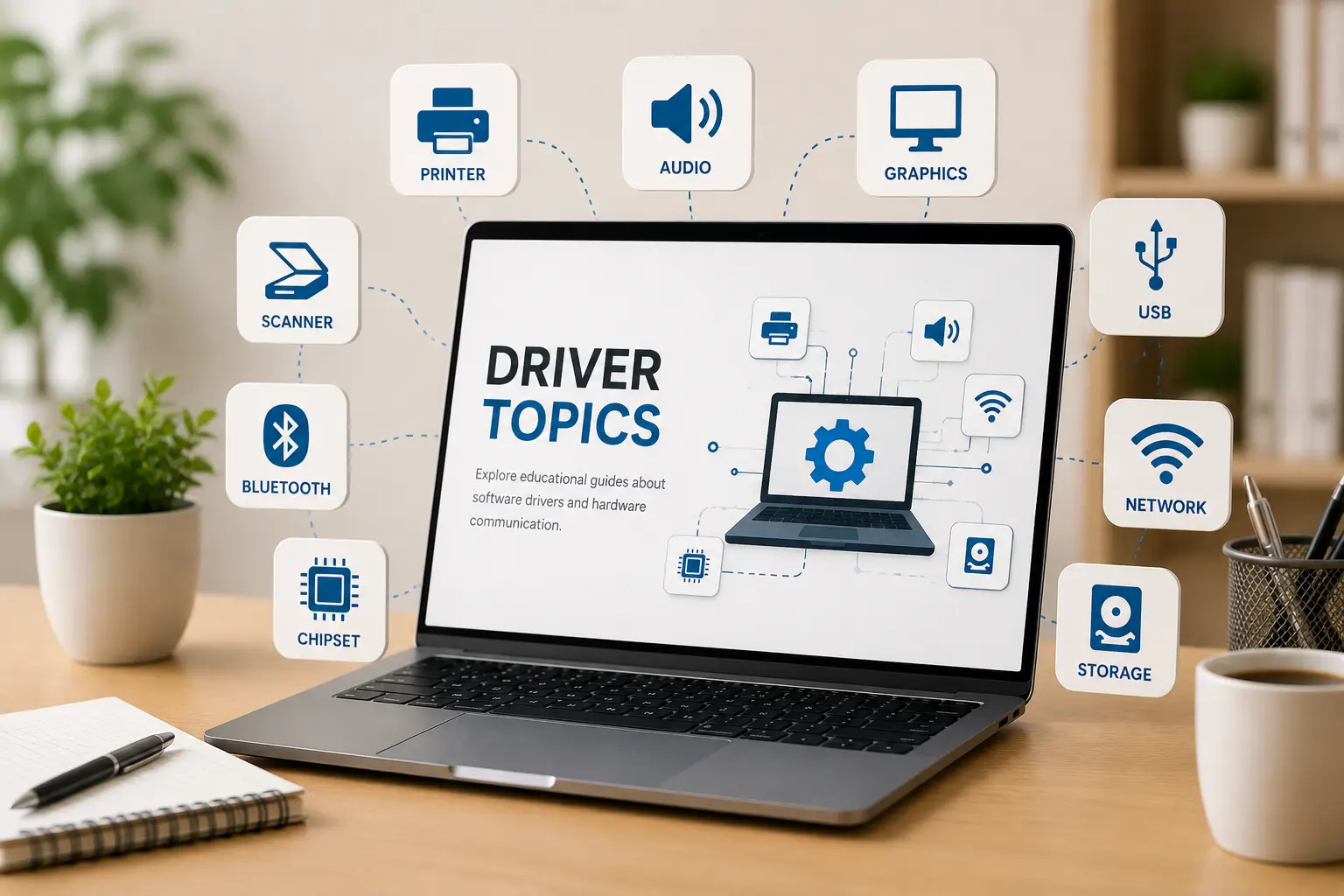
Driver topics
14+ Guides
14+
Driver categories explained in simple words.
Easy
Simple topic flow for beginner learning.
Clear
Understand hardware and operating system communication.
Select a topic and start reading.
Choose from our handpicked categories below. Read the full educational guides or inspect related official manufacturer documentation directly.
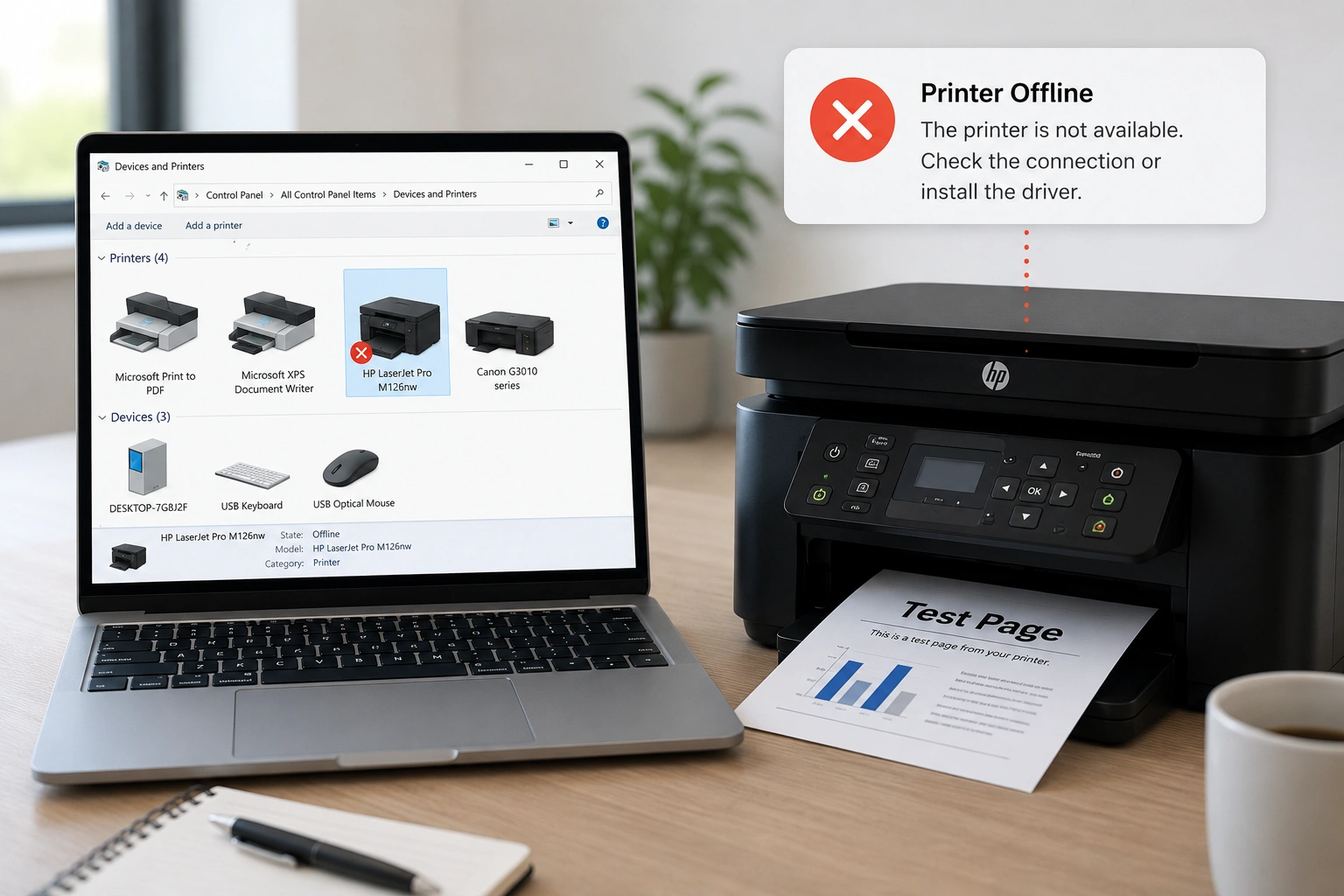
How to Connect a Printer to Your PC
Connecting a printer to your computer involves setting up the correct physical or wireless communication link. This guide explains how operating systems interface with printer drivers via USB cabling or local Wi-Fi networks. We break down how to manage active print queues, verify default printer configurations, and resolve common device status check delays. You will learn the purpose of the print spooler system, which stores your documents temporarily in memory while the printer warms up, ensuring smooth document processing without computer lag.
When Do You Need a Software Driver?
A software driver is a translator that allows your computer's operating system to communicate with plugged-in hardware accessories. Without correct drivers, devices like printers, keyboards, sound systems, and network adapters cannot interpret commands. Learn the underlying role drivers play in hardware recognition, how Windows manages update cycles, and how to verify driver status terms. We explain driver updates, optional package configurations, and how the device manager lists hardware so you can recognize normal driver states.
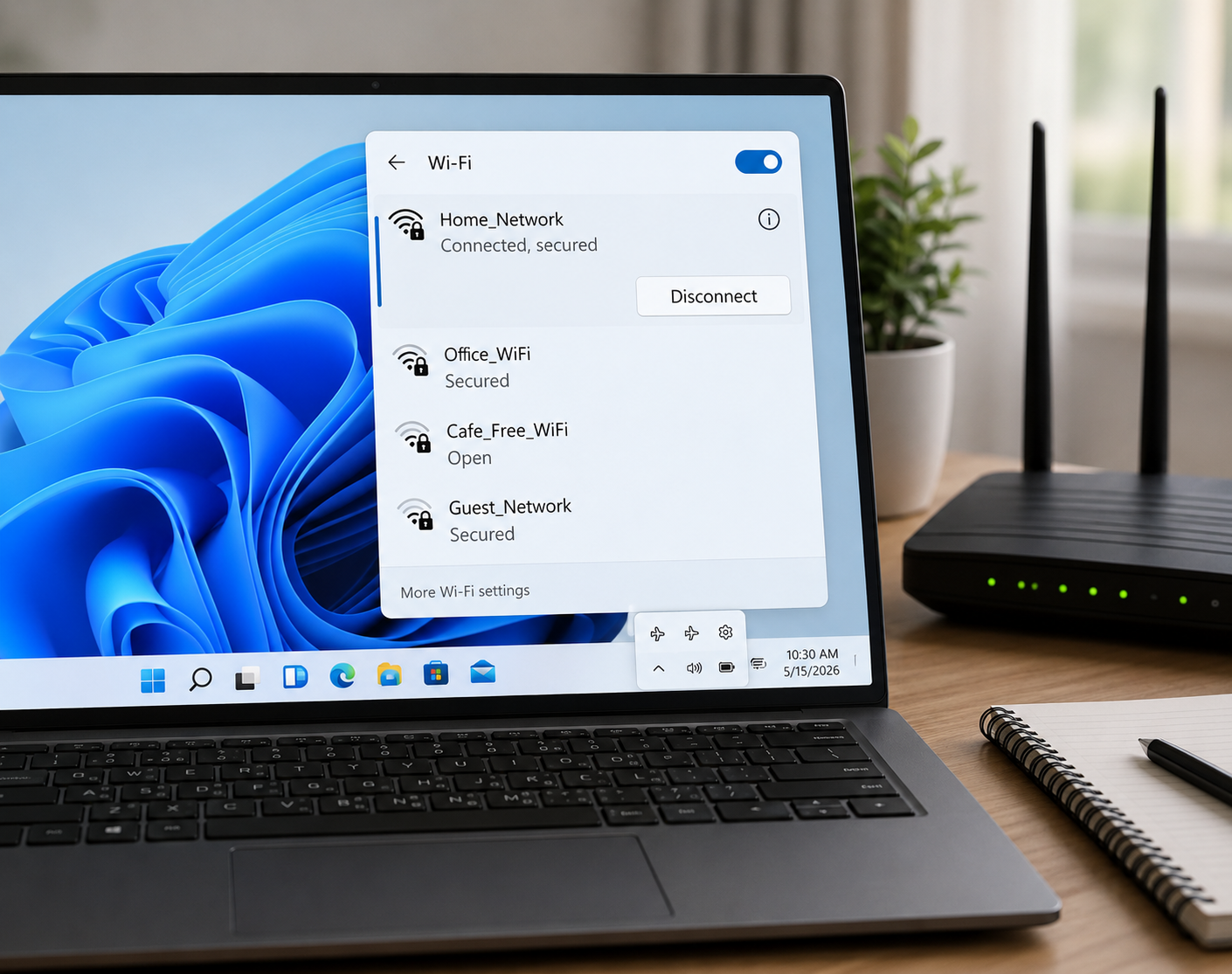
How Router and Wi-Fi Connections Work
Wireless networking relies on routers transmitting radio signals to communicate data packages with your computer. This guide covers how SSID broadcast names function, what different router indicator lights signify (such as power, internet, and wireless states), and how to verify local IP configurations. We explain what status prompts like 'connected, no internet' mean in simple everyday language, detailing the difference between your local Wi-Fi signal and the actual internet service provider connection.
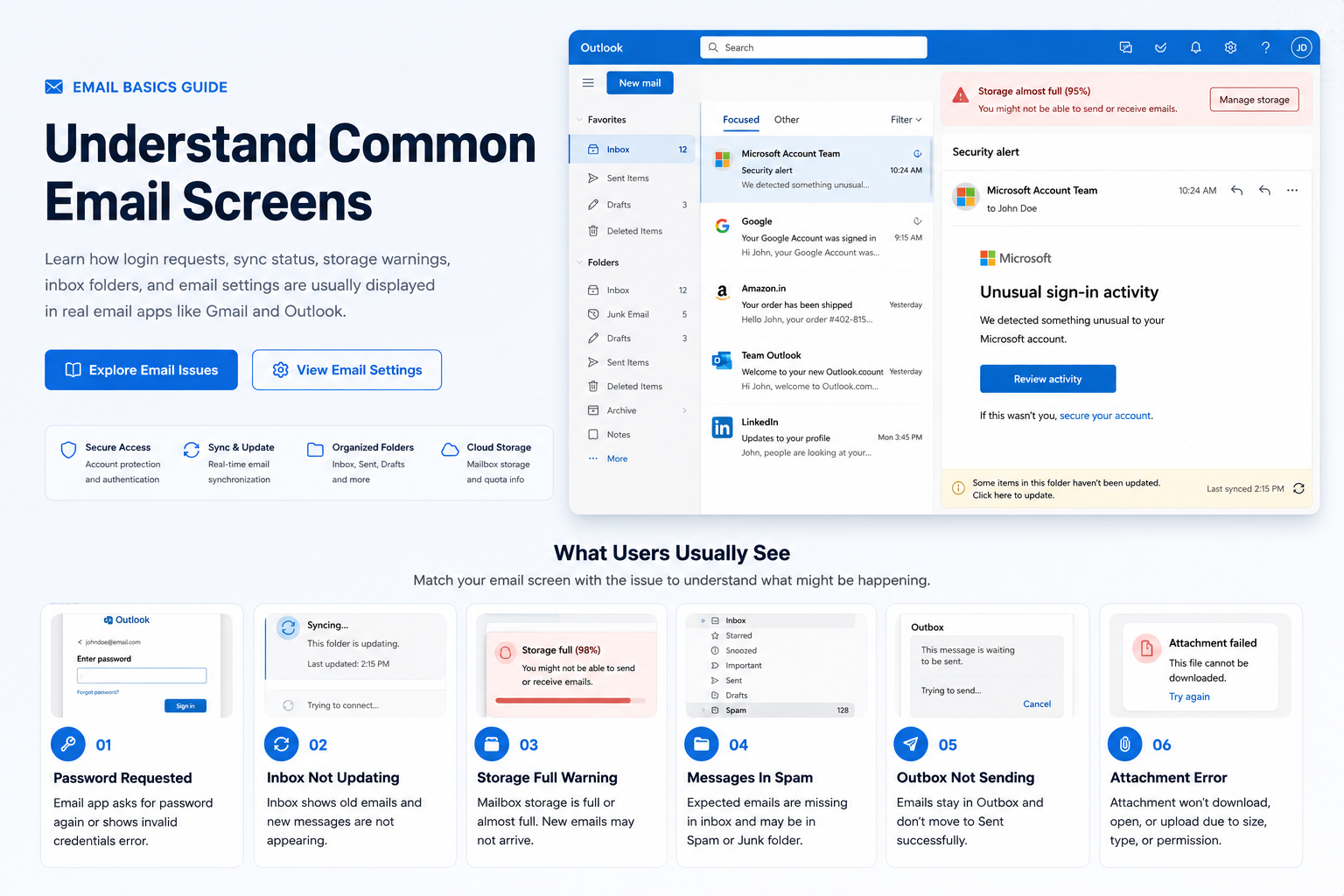
Understanding Email Access and Syncing
Email synchronization is the process that matches messages between your device's local application and the remote email server. Learn the basic differences between incoming (IMAP) and outgoing (SMTP) server configurations, how spam filters categorize incoming messages, and how credential authentication authorizes access. We break down the sync process to help you understand folder refresh cycles, how attachments are handled, and how to read server connection logs when updates don't show up.
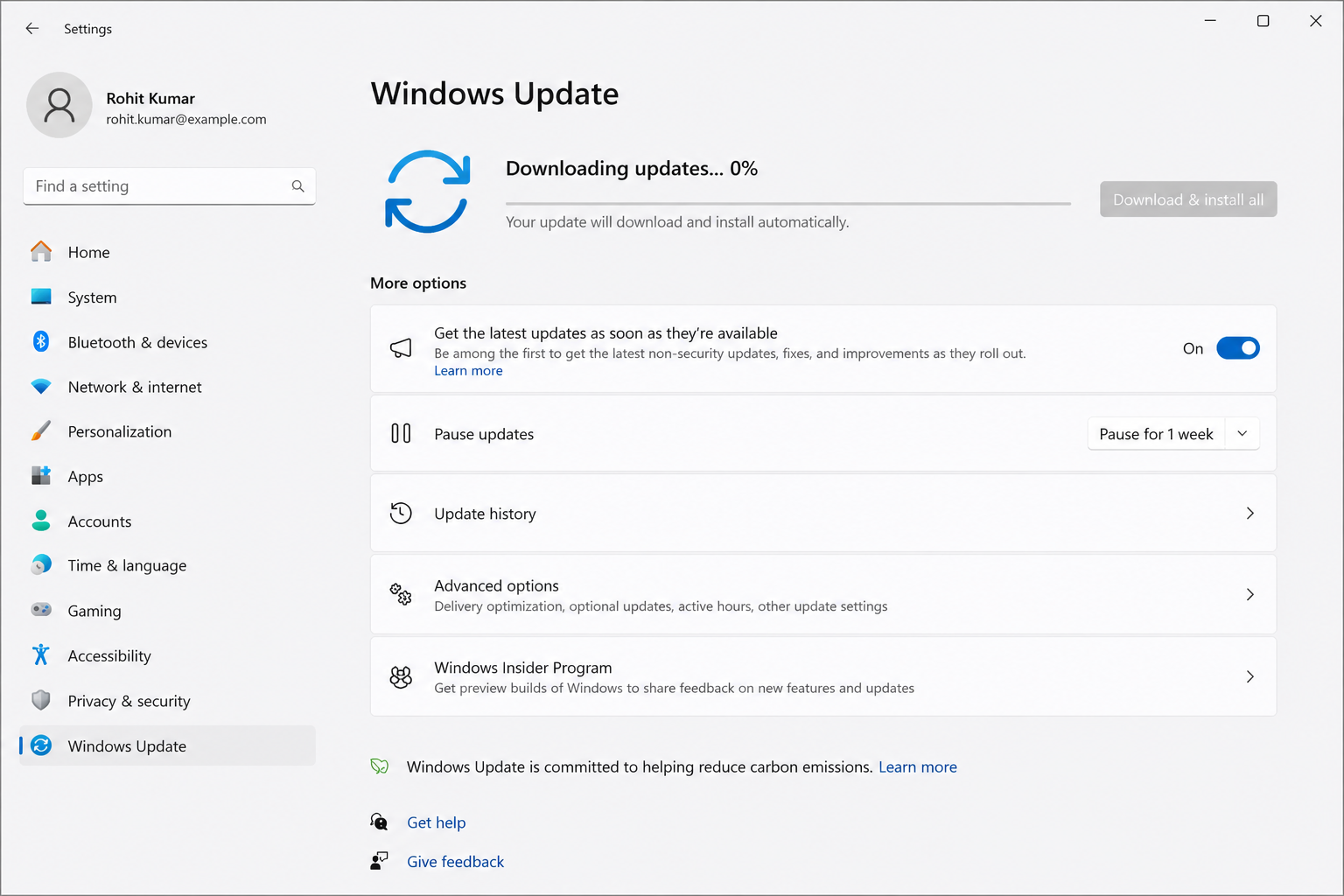
Why Windows Updates Show Messages
Operating system updates are essential maintenance patches that improve computer safety, resolve software bugs, and load new features. This guide walks beginners through understanding what happens during patch installation loops, why your system prompts you for pending restarts, and how to inspect update history logs. Learn what to expect on system update screens, how cumulative updates bundle multiple fixes together, and how to identify normal system restart prompts safely.
Topic Preview
Explore common driver areas
Learn what different driver categories do and how they support computer hardware communication.
Device Output
Printer, audio, scanner, webcam, and display-related learning topics.
Connectivity
WiFi, Ethernet, Bluetooth, USB, and connected device communication basics.
System Hardware
Chipset, storage, BIOS, UEFI, and motherboard-level driver concepts.
Input Devices
Keyboard, touchpad, mouse input, gestures, and basic control behavior.
Learning Path
Understand drivers step by step
Choose Topic
Select a driver category such as printer, audio, USB, Bluetooth, chipset or storage.
Read Concepts
Learn the meaning, purpose, and role of that driver in simple language.
Understand Role
See how hardware devices and operating systems communicate through driver software.
Explore More
Move to related driver topics and build your understanding step by step.